

Sending emails has become a part of daily life. We use email for office work, sharing documents, and staying in touch with others.
However, mistakes can happen. You may send an email to the wrong person, forget to attach a file, or send an incomplete message.
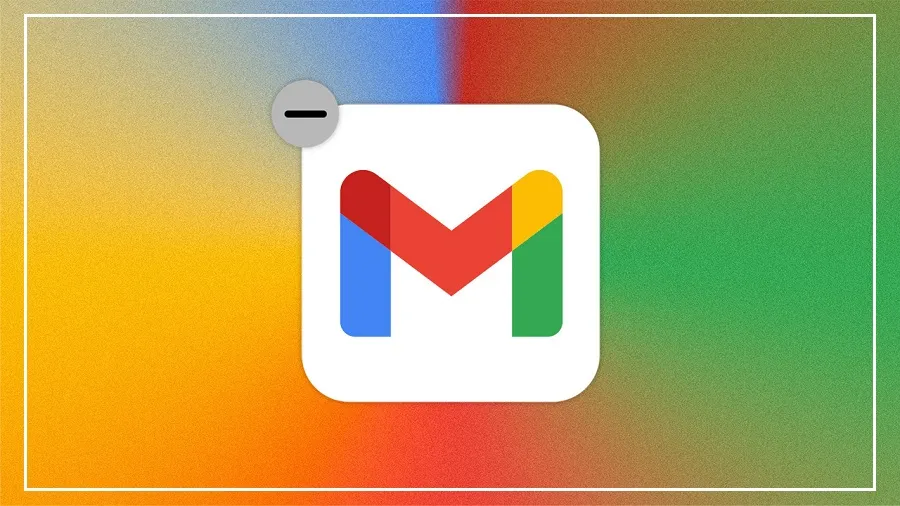
The good news is that Gmail offers a feature that can help you take back a sent email before it reaches the recipient.
Gmail Has an Undo Send Feature
Gmail includes an “Undo Send” option that allows users to cancel a sent email within a few seconds.
When you click the Send button, Gmail does not deliver the email immediately. Instead, it keeps the email on hold for a short period. During this time, an “Undo” button appears on the screen.
If you click “Undo” quickly, the email is moved back to the Drafts folder and is not delivered to the recipient.
How to Change the Undo Send Time
You can increase the time available to cancel a sent email by changing Gmail settings.
Follow these steps:
Open Gmail.
Click the Settings icon in the top-right corner.
Select “See all settings.”
Find the “Undo Send” option.
Choose a cancellation period of 5, 10, 20, or 30 seconds.
Save the changes.
Many users prefer the 30-second option because it provides more time to spot and fix mistakes.
Undo Send Also Works on Mobile
The Undo Send feature is available on both desktop and mobile devices.
When you send an email from the Gmail app, an “Undo” option appears at the bottom of the screen for a few seconds. Tapping it will stop the email from being delivered and return it to Drafts.
Important Things to Remember
While the Undo Send feature is very useful, it only works for a limited time.
If you do not tap the Undo button before the selected time period ends, the email will be sent normally. That’s why it is always a good idea to quickly review your email after pressing Send.
Using Gmail’s Undo Send feature can help you avoid embarrassing mistakes and give you one last chance to make corrections before your message reaches someone else.