

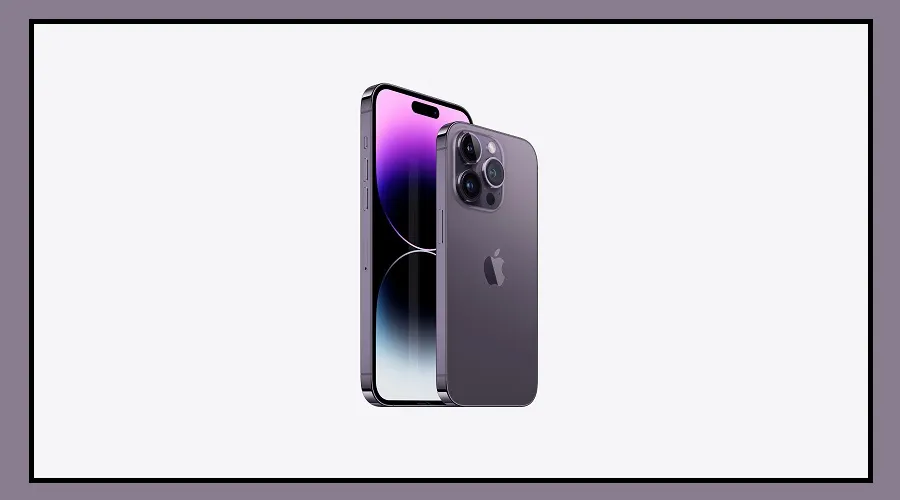
How to check if your iPhone is real or fake is important before using a newly purchased device.
With iPhone 18 Pro and iPhone 18 Pro Max sales starting in India, buyers should verify the phone carefully, especially when purchasing from offers or second-hand sellers.
A fake iPhone can look very similar to a genuine model from the outside. Checking only the Apple logo, box or design may not be enough.
The phone’s software, Settings information, serial number, IMEI, Siri and camera can provide useful clues.
How to Check if Your iPhone Is Real or Fake
The first step is to turn on the iPhone and open Settings. Go to General and then About. This section shows important details such as the model name, model number, serial number, IMEI, iOS version and storage capacity.
A genuine iPhone runs on Apple’s iOS operating system. If the phone shows an unusual interface or Android-related features, buyers should be cautious.
The presence of Google Play Store instead of Apple’s App Store is a major warning sign.
Check the Box and iOS Software
When buying a new iPhone, examine the packaging carefully. Check the printing, Apple branding, written information and overall finish. Blurry printing, poor-quality packaging or spelling mistakes can be warning signs.
However, the box alone cannot confirm that the phone is genuine. The information printed on the box should also be compared with the details shown on the phone.
The software is another simple check. Open Settings and look at the interface. You can also open the App Store, Safari, FaceTime, Camera and Photos to see whether the device behaves like a normal iPhone.
Some fake devices may copy the appearance of iOS while actually running Android. A Google Play Store or other Android-related feature should therefore be treated as a red flag.
Test Siri and the Camera
Siri is Apple’s voice assistant and can also be tested. Activate Siri and ask a simple question. If a different assistant opens or the feature does not work as expected, the phone should be checked more carefully.
The camera should also be tested instead of simply checking whether the Camera app opens. Take photos, record videos and try the available camera modes.
Check the focus, photo quality and video recording. On models with multiple cameras, test each camera separately. This can help identify phones where the camera setup does not work properly.
Check the Serial Number and IMEI
The serial number is another important detail to verify. Go to Settings, General and About to find it. If the phone comes with a box, compare the serial number shown on the device with the number printed on the packaging.
The IMEI number can also be found in the About section. It is a unique number used to identify the phone. Compare the IMEI shown on the device with the information on the box.
If the serial number or IMEI does not match, ask the seller for an explanation and verify the details before completing the purchase.
These checks can help buyers avoid paying a high price for a fake, incorrect or wrongly represented iPhone.